
Your phone has a strong signal, but your laptop has no Wi-Fi. It’s a familiar moment on the road: the hotel network keeps dropping, the café asks for a password nobody knows, or the vacation rental’s router hasn’t been set up yet. The fastest fix is usually already in your pocket. If your phone has a travel eSIM, it can share that mobile data with your other devices as a personal hotspot.
That raises a few practical questions. Does an eSIM support hotspot at all? How much data does a laptop use when it’s tethered to a phone? And should you buy a bigger eSIM plan, an unlimited plan, or a physical SIM card for a pocket Wi-Fi router? This guide answers each of them, so you can pick a plan that keeps every device online without running out of data halfway through your trip.
1. Does an eSIM Support Personal Hotspot?
In most cases, yes. An eSIM is simply a digital version of a SIM card. Once it’s installed and set as your phone’s cellular data line, the phone treats it like any other mobile connection, and hotspot sharing uses that same line.
Most LemonSIM plans support personal hotspot (also called tethering), unless the product page says otherwise. Before you buy, it’s still worth checking three things:
- The plan page. If a plan has a hotspot restriction or a special data rule, it is listed there.
- Your phone. It must support eSIM and be carrier-unlocked. Our guide to how eSIM works explains the device requirements.
- Your data line. If you keep your home SIM active for calls, your phone needs to know that the eSIM is the line for data. Otherwise, hotspot traffic may go through your home carrier and its roaming rates. Our dual SIM setup guide walks through this step by step.
2. How Much Data Does Tethering Use?
This is where most people underestimate. A laptop uses far more data than a phone doing the same task. Laptops load full desktop websites, sync cloud folders in the background, and download system and app updates the moment they see an internet connection.
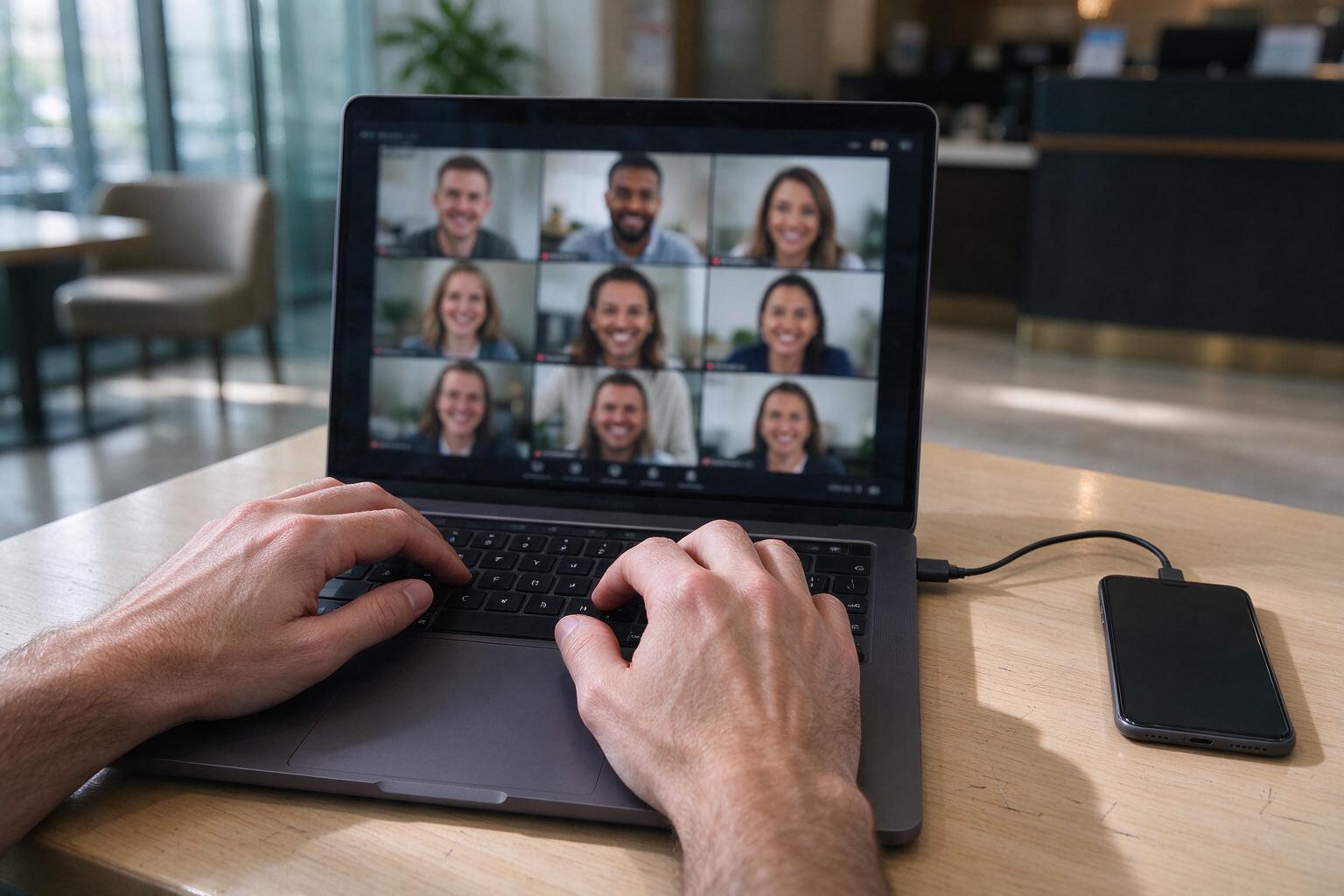
These typical figures will help you estimate your own usage:
- Email, chat and web browsing on a laptop: about 100–300 MB per hour
- Video calls (Zoom, Teams, Google Meet): roughly 0.5–1.5 GB per hour, depending on video quality and the number of participants
- Streaming video in HD on a laptop or tablet: around 1–3 GB per hour
- Uploading photos or large work files: depends on file size, often several GB for a full day of photos
- Operating system and app updates: anywhere from a few hundred MB to several GB at once
A simple formula works well: (your normal daily phone usage) + (hotspot hours per day × data per hour) × number of days.
For example, imagine a remote worker who uses about 1 GB a day on their phone and spends two hours a day on video calls through hotspot. That’s roughly 1 GB + 2 GB = 3 GB a day, or about 21 GB for a week. A plan that looks generous for phone-only use runs out in just a few days once a laptop joins in.
3. How to Turn On Hotspot With an eSIM
Before turning hotspot on, install the eSIM and make sure it’s selected as your cellular data line. You can install the eSIM before your trip while you’re on stable Wi-Fi. Activation, and therefore hotspot use, starts when you connect at your destination.
On iPhone:
- Go to Settings > Cellular (or Mobile Data) and confirm the eSIM is selected under Cellular Data.
- Go to Settings > Personal Hotspot and turn on Allow Others to Join.
- Set a strong Wi-Fi password, then connect your laptop or tablet to your iPhone’s network.
- If an older device can’t find the network, turn on Maximize Compatibility.
On Android:
- Open Settings > Network & internet > SIMs (Samsung: Settings > Connections > SIM manager) and set the eSIM as the SIM for mobile data.
- Go to Hotspot & tethering (Samsung: Mobile Hotspot and Tethering) and turn on Wi-Fi hotspot.
- Set a password and connect your other devices.
Wi-Fi, USB or Bluetooth? Wi-Fi hotspot is the easiest way to connect several devices. USB tethering is often more stable and charges your phone at the same time, which makes it the best choice for long video calls. Bluetooth tethering uses the least battery but is too slow for anything beyond email.
4. Five Ways to Save Data While Using Hotspot
Small settings changes on your laptop can save gigabytes:
- Mark the hotspot as a metered connection. On Windows, open the network’s properties and turn on Metered connection. On a Mac, select the hotspot network in Wi-Fi settings, open Details, and turn on Low Data Mode. Both reduce background downloads and updates.
- Pause cloud sync (iCloud Drive, Google Drive, OneDrive, Dropbox) while you’re on mobile data.
- Lower video call quality or turn off your camera when you don’t need it.
- Download large files and updates before you leave a reliable Wi-Fi network.
- Turn hotspot off when you’re done. Connected devices keep using data in the background, even when you’re not actively working on them.
5. Which LemonSIM Plan Fits Your Hotspot Use?
Once you know your hotspot habits, the plan choice becomes much clearer. Here is how we’d match common scenarios to USA eSIM plans. The same logic applies to every destination.
- Occasional tethering on a short trip. You check email on a laptop now and then, but mostly use your phone. A mid-size weekly plan such as the 5GB / 7-day USA eSIM leaves enough room for light hotspot sessions.
- Daily laptop work for one week. A few hours of browsing and documents every day, with the odd video call, fits the 10GB / 7-day USA eSIM.
- Remote work with daily video calls. As the example above shows, this can reach 20 GB or more in a week. The 7-day unlimited USA eSIM currently costs only about a dollar more than the 10GB weekly plan, so it’s the safer choice once video calls are part of every day.
- A month of travel, temporary housing or a workation. If your hotspot use is moderate, the 20GB / 30-day USA eSIM gives you a month of room. If the phone is your main internet connection for a laptop, choose the 30-day unlimited USA eSIM.
- Short trips with family devices. Tablets streaming in the back seat use data quickly. Unlimited plans such as the 10-day unlimited USA eSIM avoid constant data checks.
Traveling somewhere else? The same plan sizes are available for other destinations. Two examples are the Japan 7-day unlimited eSIM and the Europe 20GB / 15-day eSIM. You can browse every destination on the eSIM plans page.
A note on unlimited plans: before you rely on one for heavy hotspot use, read its product page for any notes on high-speed data or hotspot use, so you know exactly what you’re getting.
6. When a Physical SIM Card Is the Better Choice
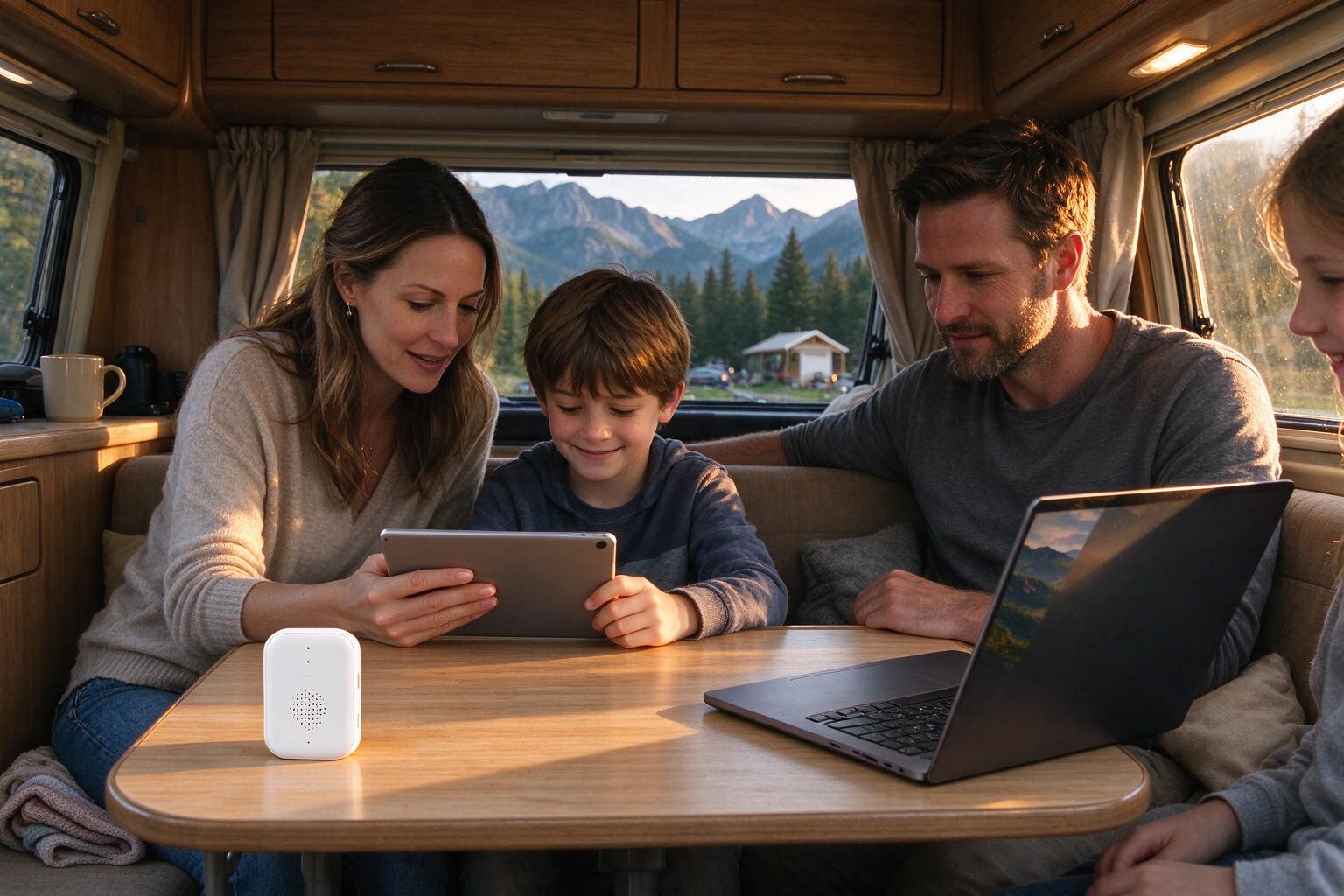
Phone hotspot is perfect for one person with a laptop. But it has limits: your phone gets warm, the battery drains quickly, and everyone loses internet when you walk away with your phone. In some situations, a physical SIM card in a pocket Wi-Fi or 4G router works better:
- RV trips, vacation rentals and long stays, where several people need Wi-Fi all day.
- Shared family or team connections, where the internet shouldn’t depend on one person’s phone.
- Devices that can’t hold an eSIM, such as most pocket Wi-Fi routers, 4G home routers, and security cameras.
- Phones that don’t support eSIM, or phones that are still locked to a carrier.
LemonSIM SIM cards work in unlocked 4G devices, including phones, tablets, 4G Wi-Fi routers and pocket Wi-Fi hotspots. For a month in a rental or an RV, the 20GB / 30-day USA SIM card is a good starting point. For a longer stay, consider the 20GB / 90-day USA SIM card. All options are on the SIM card plans page.
7. Device and Destination Checklist
Before you rely on hotspot for work or family travel, run through this list:
- Your phone supports eSIM and is carrier-unlocked.
- The plan’s product page doesn’t list a hotspot restriction.
- The eSIM is installed before departure, and you know how to set it as your data line when you arrive.
- If your plan’s instructions mention data roaming, turn it on for the eSIM line only. Keep it off on your home SIM.
- You have a charging cable or power bank, because hotspot drains the battery fast.
- Your laptop is set to a metered or Low Data Mode connection.
- For router setups, the device is unlocked and supports 4G. If the connection doesn’t start, check the APN setting described on the SIM card’s product page.
8. Hotspot FAQs
Can I share my eSIM data with someone else’s phone?
Yes. Any Wi-Fi device can join your personal hotspot. Remember that everything connected to it draws from your plan’s data.
Will hotspot work before I arrive?
No. The plan starts when the eSIM connects to a network at your destination. Install it before you travel, then turn on hotspot after you arrive.
Why is my hotspot slower than the phone itself?
Signal strength, the number of connected devices, and background downloads on the laptop all affect speed. For video calls, try USB tethering and keep the phone near a window.
Can I install the eSIM directly on my tablet or laptop instead?
If the tablet or laptop supports eSIM, yes. In that case, install the eSIM on the device that uses the most data. An eSIM can usually be installed on only one device, so decide before you scan the QR code.
Conclusion: One Data Plan, Every Device Online
An eSIM hotspot is one of the simplest ways to keep a laptop, tablet or travel companion connected on the go. The key is to plan for hotspot use from the start. Estimate your laptop’s daily data use, set the eSIM as your data line, and choose a plan with room to spare, or an unlimited plan if video calls are part of your day. For RVs, rentals and groups, a physical SIM card in a pocket Wi-Fi router keeps everyone online without tying the internet to one phone.
Explore LemonSIM eSIM plans and SIM card plans to find the right data plan for your next trip, and if you have questions about hotspot or device compatibility, our FAQ is a good place to start.