
You bought a 3GB eSIM for a week in Japan, and by day three your phone says half of it is gone. You didn’t stream a single movie. What happened?
Usually, nothing you did on purpose. Smartphones are built for home, where data feels endless. They back up photos, update apps, refresh feeds and autoplay videos in the background. On a home plan you never notice. On a small travel eSIM, those background habits can use more data than your maps, messages and searches combined.
The good news is that a few settings changes, most of which take less than ten minutes, can make a small eSIM plan last much longer. This guide walks through the exact settings on iPhone and Android, the app tweaks that save the most data, and how to choose a plan size once your phone is tuned. We’ll use Japan eSIM plans and Europe eSIM plans as examples, but the same logic works for every destination.
1. Where Travel Data Actually Goes
Before you change anything, it helps to know what uses the most data. These are rough, typical figures. Your own usage depends on your apps, video quality and how much you scroll.
- Messaging (text only): very little, often just a few MB a day.
- Maps and navigation: usually modest, especially if you download offline maps before you go.
- Web browsing and searching: light to moderate, depending on how many image-heavy pages you open.
- Photo backup to the cloud: can be several hundred MB to a few GB a day if you take lots of photos and videos.
- Social media with video: one of the biggest users. An hour of scrolling short videos can use hundreds of MB.
- Video streaming: often 1 GB or more per hour in HD.
- App and system updates: a single update can be hundreds of MB, and they often start on their own.
The pattern is clear. Maps and messaging, the things you really need when traveling, are cheap. Background backups, autoplay video and updates are expensive. The settings below target the expensive things without touching the useful ones.
2. iPhone Data-Saving Settings
Do this at home before your trip, after you’ve installed your eSIM on Wi-Fi. If your iPhone has two lines, some settings apply to each line separately, so make sure you’re changing them for the travel eSIM.
- Turn on Low Data Mode for the eSIM line. Go to Settings > Cellular, tap your travel eSIM, then Data Mode and choose Low Data Mode. This pauses automatic updates and background tasks such as Photos syncing.
- Turn off cellular data for apps you don’t need. In Settings > Cellular, scroll down to the list of apps and switch off anything you won’t use on the road, such as streaming apps you only use at home.
- Turn off Wi-Fi Assist. At the bottom of Settings > Cellular, switch off Wi-Fi Assist so your phone doesn’t quietly switch to mobile data when hotel Wi-Fi is weak.
- Stop photo uploads over mobile data. Go to Settings > Photos > Cellular Data (wording varies slightly by iOS version) and turn it off. Your photos will back up when you’re back on Wi-Fi.
- Stop automatic downloads. In Settings > App Store, turn off Automatic Downloads and App Updates over cellular, and set Video Autoplay to off.
- Limit Background App Refresh. Go to Settings > General > Background App Refresh and set it to Wi-Fi only, or switch it off for apps you don’t need.
- Reset your usage counter. At the bottom of Settings > Cellular, tap Reset Statistics when your plan starts. Now the numbers you see match your eSIM, not last month’s home usage.
3. Android Data-Saving Settings
Menu names vary between brands. The paths below are for Google Pixel and Samsung Galaxy phones, and other Android phones use similar wording.
- Turn on Data Saver. On Pixel, go to Settings > Network & internet > Data Saver. On Samsung, go to Settings > Connections > Data usage > Data saver. This stops most apps from using data in the background.
- Allow important apps through. Inside Data Saver, you can let specific apps, such as your messaging app or maps, keep using data in the background.
- Set a data warning for the eSIM. On Pixel, open Settings > Network & internet > SIMs, choose your travel eSIM, then Data warning & limit. On Samsung, look under Settings > Connections > Data usage. Set the warning a little below your plan’s data amount and the billing cycle to start on your trip’s first day.
- Block background data per app. Go to Settings > Apps, choose an app, then Mobile data (or Mobile data & Wi-Fi) and turn off Background data.
- Update apps on Wi-Fi only. In the Google Play Store, tap your profile icon, then Settings > Network preferences > Auto-update apps and choose Over Wi-Fi only.
- Stop photo backup on mobile data. In Google Photos (or Samsung Cloud), open the backup settings and make sure backup doesn’t use mobile data.
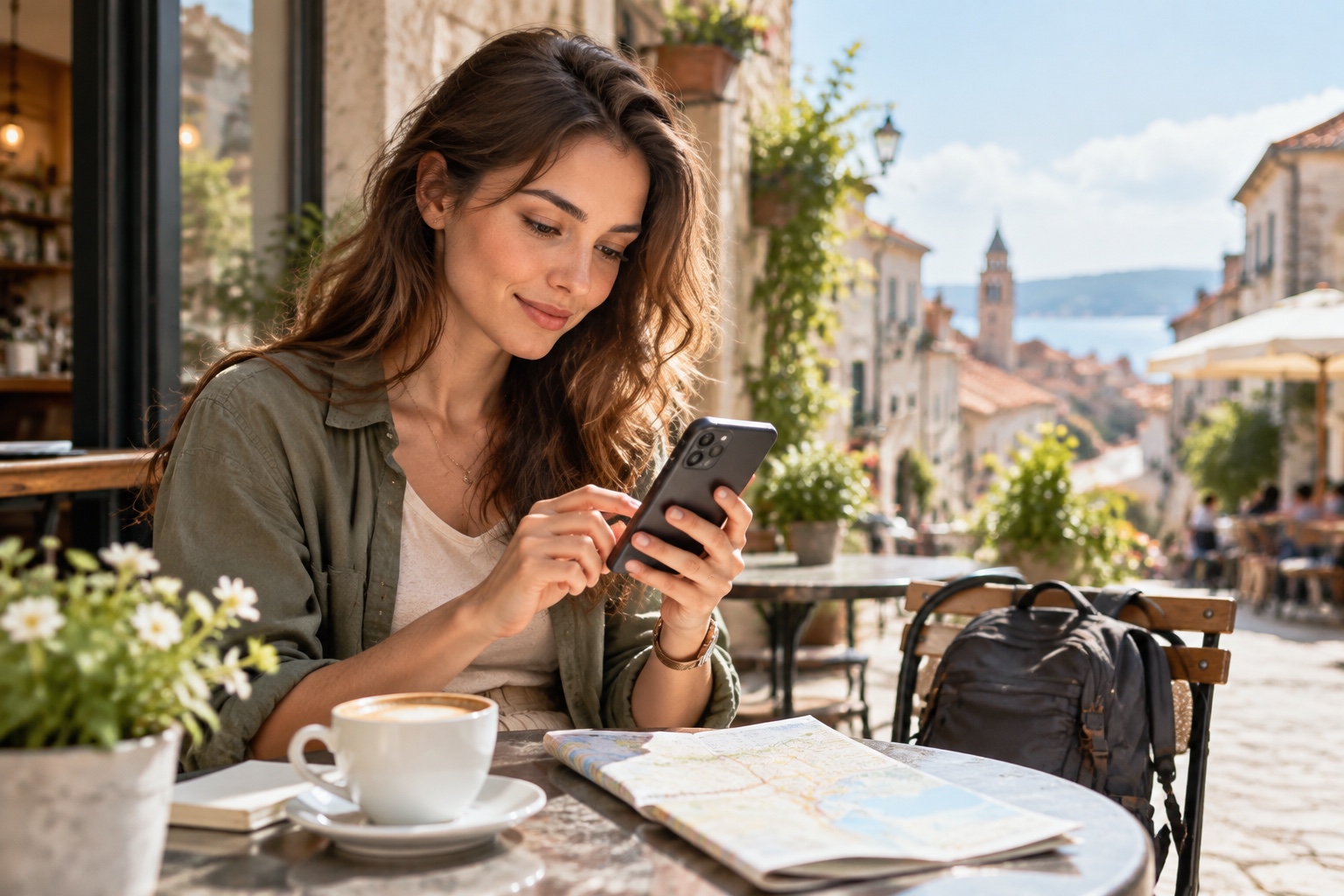
4. App Tweaks That Save the Most Data
Phone settings handle the background. These app settings handle what you do on purpose.
- Download offline maps. Google Maps and Apple Maps both let you download an area before you go. Save the cities you’re visiting while you’re on Wi-Fi, and your phone will use far less data for navigation.
- Lower video quality in social apps. Most social apps have a “data saver” or “use less mobile data” option in their settings. Turning off video autoplay alone makes a big difference.
- Set YouTube to Data saver. In YouTube’s settings, look under Video quality preferences and choose Data saver for mobile networks.
- Stop media auto-download in messaging apps. In WhatsApp, go to Settings > Storage and data and set media auto-download to Wi-Fi only. Many other messaging apps have the same option.
- Download playlists, podcasts and shows before you leave. Streaming the same music on a train uses data. Downloading it at home uses none.
- Use translation apps offline. Download the language pack for your destination so the app works without data.
5. Keep Your Home SIM From Using Data
Data-saving settings only help if your phone is using the right line. If you keep your home SIM active for calls and texts, make sure your phone uses the travel eSIM for data. Otherwise, background apps may connect through your home carrier and its roaming rates.
LemonSIM’s setup steps cover this: when you arrive, set the LemonSIM eSIM as your mobile data line, and turn off your home SIM’s data to avoid roaming charges from your home provider. On iPhone, go to Settings > Cellular > Cellular Data and choose the eSIM. On Android, set the eSIM as the SIM for mobile data in your SIM settings. Also check that Allow Cellular Data Switching (iPhone) or automatic data switching (Android) is off, so the phone doesn’t fall back to your home line when the signal dips. Our dual SIM guide explains this setup step by step.
If the eSIM won’t connect at all, the LemonSIM FAQ suggests checking that your device supports eSIM, that Data Roaming is enabled for the eSIM line, and that the correct eSIM profile is selected.
6. Which Plan Size Fits a Data-Saving Traveler?
Once your phone stops wasting data, a smaller plan often covers a trip that would otherwise need a much bigger one. Here’s how we’d match plan sizes to travel styles, using Japan and Europe as examples. Prices are current at the time of writing, so check the plan page before you buy.

- A short trip, mostly maps and messages. For a long weekend, the 1GB / 7-day Japan eSIM, currently $4.99, can work as a light data line if you rely on offline maps and hotel Wi-Fi.
- A week of sightseeing with careful settings. Maps, messaging, searches and a few photo posts a day fit well in the 3GB / 7-day Japan eSIM, currently $8.99.
- Two weeks in Europe, data-saving mode on. The 3GB / 15-day Europe eSIM, currently $11.99, suits travelers who stay on Wi-Fi at night. If you also post stories and use video calls now and then, the 5GB / 15-day Europe eSIM, currently $16.99, gives you more headroom.
- Still deciding between an eSIM, a pocket WiFi or roaming for Japan? Our guide to the best way to stay connected in Japan compares all four options.
- Two weeks in Japan with regular social sharing. The 5GB / 15-day Japan eSIM, currently $13.99, balances price and room to spare.
- You’d rather not think about data at all. If you stream, upload video or share a hotspot with a laptop, data-saving settings will only go so far. A 7-day unlimited plan such as the Europe unlimited 7-day eSIM (currently $23.50) or the Japan unlimited 7-day eSIM (currently $27) is the simpler choice. Read the product page for any notes on how the plan handles data before you rely on it for heavy use.
Not sure how much you’ll need in Japan? Our guide to how much data you need for Japan travel breaks it down by trip type, and our plan selection guide covers validity periods and pre-purchase checks.
Running low mid-trip? Recharge availability depends on the plan. Check the product details or LemonSIM’s Top-Up page for supported plans before you count on adding data later.
7. When a Physical SIM Card Makes More Sense
Data-saving settings work the same way with a physical SIM card. A SIM card is the better choice when:
- Your phone doesn’t support eSIM, or you’re not sure it does.
- You want to use the data in another device, such as an unlocked 4G pocket Wi-Fi router or a tablet with a SIM slot.
- You want a plan that lasts longer than a typical short travel eSIM.
For Japan, the 3GB / 15-day Japan SIM card is currently $19.99. For a longer stay in Europe, the 5GB / 30-day Europe SIM card is currently $34.99. Whichever device you use, it needs to be network-unlocked.
8. Quick Pre-Trip Data-Saving Checklist
- Install your eSIM at home on Wi-Fi.
- Turn on Low Data Mode (iPhone) or Data Saver (Android) for the travel line.
- Turn off photo backup, app updates and video autoplay on mobile data.
- Download offline maps, music, shows and translation packs.
- Reset your data counter, or set a data warning, when the plan starts.
- On arrival, set the eSIM as your data line and turn off data on your home SIM.
9. Data-Saving FAQs
Does Low Data Mode or Data Saver slow down my maps and messages?
No. These modes mostly limit background activity, automatic updates and some media quality. Apps you’re actively using still work, though some may load images or videos at lower quality.
Will my phone use data before I arrive?
Your plan starts when the eSIM connects to a network at your destination. Before that, you can install the eSIM and change all these settings on Wi-Fi without using any of your plan’s data.
Why doesn’t my phone’s data counter match my plan?
Your phone’s counter may include your home SIM or usage from before your trip. Reset the statistics (iPhone) or set the billing cycle start date (Android) when the plan begins so the numbers match more closely.
Do these settings matter on an unlimited plan?
They matter less, but they still help with battery life. And if your plan’s product page mentions any data rules for heavy use, keeping background data in check helps you get the most out of it.
Conclusion: Small Plan, Whole Trip
A small eSIM plan doesn’t run out because you used maps too often. It runs out because your phone treats mobile data like home Wi-Fi. Spend ten minutes before your trip turning on Low Data Mode or Data Saver, stopping background backups and updates, and downloading offline maps. Then a 3GB or 5GB plan can cover days of navigation, messaging and sharing.
Browse LemonSIM eSIM plans to find the right data amount for your destination, or choose from our SIM card plans if your device needs a physical SIM.