
A travel eSIM and in-flight Wi-Fi cover different parts of the same trip. For internet in the air, use the aircraft’s Wi-Fi where the airline offers it and the crew permits it. A regular destination eSIM gives you mobile data on the ground where the plan has coverage. If you need to send a message halfway through a flight and order a ride after landing, check the Wi-Fi offer for your flight and compare eSIM plans for your destination before you leave.
Travel eSIM vs. In-Flight Wi-Fi: Where Does Each Work?
Your travel eSIM connects to a participating cellular network when its radio is on and you’re within coverage. In-flight Wi-Fi connects your device to the aircraft’s own network. The aircraft then supplies the internet connection, often through a satellite link or an air-to-ground system. You can join the airline’s Wi-Fi with a Wi-Fi-capable laptop or tablet as well as your phone, subject to the airline’s rules and any device limits on your pass.
A plan that says “unlimited” describes its data allowance within the stated service area and terms. It doesn’t include the airline’s connection. The same goes for a plan that covers several countries on the ground. Some airlines offer a separate onboard cellular service on certain aircraft. If the crew says it is available and permitted, check the airline’s and your carrier’s terms for that service before using it. A standard destination data plan doesn’t provide onboard cellular access.
At the gate, your home line or a travel line with coverage in the departure country may still provide mobile data until the crew tells you to change your device settings. In the air, keep your phone in airplane mode as instructed and turn Wi-Fi back on when permitted. Once the crew allows cellular use after landing, you can switch to a line that covers the country you’re in. For a trip that starts with a flight and continues by sea, see the separate guide to port data, ship Wi-Fi and maritime roaming.
How Do You Check Wi-Fi Before You Buy a Pass?
Start with the operating airline on the reservation. On a codeshare, the airline that sold the ticket may be different from the one flying the plane. Check each flight number and date, including connecting legs, on the operating airline’s booking page or app. Look for an aircraft-specific Wi-Fi listing, and check again close to departure if the airline changes aircraft.
Work backward from what you need to do on board:
- Send a quick update. A messaging-only offer may let you send text in supported apps. Check the app list, whether photos and attachments work, and whether the person you’re contacting can receive messages there.
- Use email, websites or a laptop. Check for a plan that includes web access and whether it covers one device at a time. If you need to start on your phone and finish on your laptop, find out whether you can transfer the session.
- Stream, join a meeting or send a big file. The airline may restrict some of these uses, and an available connection may still be too slow or intermittent. Download what you need beforehand and make plans that can survive a missed session.
Also check when a pass starts, how long it lasts and whether it carries over to the next flight. An hour-long pass is useful when you know roughly when you need to be online. A flight-long pass may make sense if you have several things to do at different points, but confirm that it covers the whole leg. If access depends on a loyalty account, sign in and confirm you can retrieve the login before boarding. Compare prices in the official portal for your flight, since the published headline price may describe a different aircraft, cabin or pass.
How Do You Join the Cabin Wi-Fi When the Portal Won’t Open?

Put your phone in airplane mode and re-enable Wi-Fi when the crew permits it. Join the network named in the official cabin instructions. A sign-in page may open automatically. If it doesn’t, open a browser and type the portal address from the airline’s instructions. If the portal won’t load on your work laptop, ask the crew whether the service has started and try your phone if your employer’s device settings prevent the login page from opening.
Once connected, test the particular app or site you need. A Wi-Fi symbol confirms a connection to the plane’s local network. The flight map or entertainment library can load even if internet access hasn’t started or has dropped. If your messages work and a website doesn’t, check whether you selected a messaging-only offer. If both stop working, check the portal for a service message and ask the crew before buying another pass.
On a work trip, keep the document you need available offline and draft replies locally so you can send them when the connection returns. When a small text update matters more than a background upload, pause cloud syncing and app updates. The same habits can help you make a small mobile data plan last once you’re back on the ground.
When Can You Switch to Mobile Data After Landing?
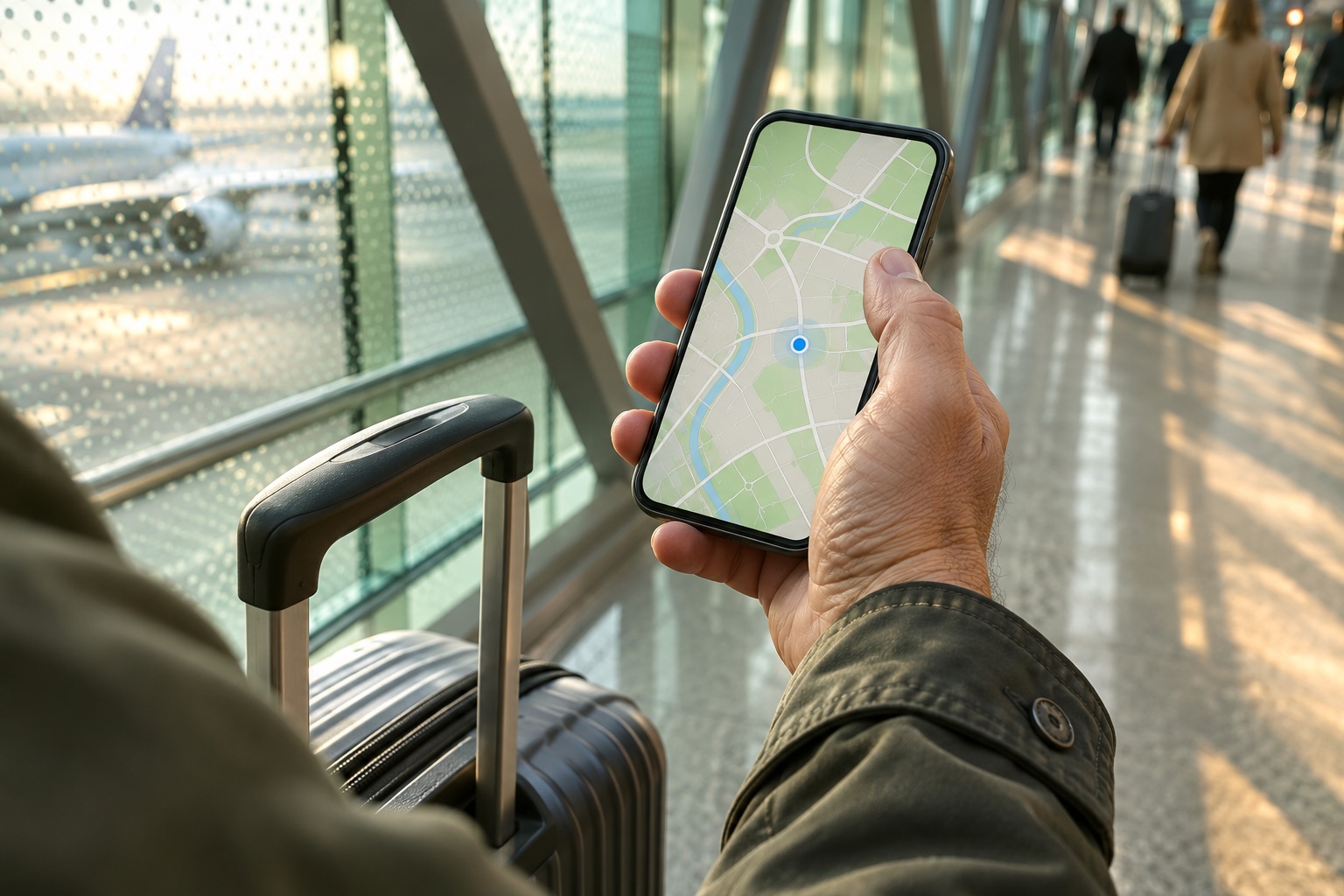
When the crew allows cellular use, turn off airplane mode, select the travel line for mobile data and follow the roaming instructions for that line in the LemonSIM arrival FAQ. Briefly disconnect from cabin or airport Wi-Fi and load a fresh page or send a new message to confirm the line works. A map you opened earlier may still be in your phone’s cache.
If you’re changing planes in another country, check whether your plan includes that country. Airport Wi-Fi and offline boarding passes may be enough for a short connection. For a long stop with a trip into town, find out what will work beyond the terminal. Save the address, meeting point and any return instructions before you leave the airport.
Say you’re flying to Tokyo via another country. If you want maps and messages for a week in Japan, LemonSIM’s Japan 3 GB / 7-day eSIM currently costs US$8.99 and covers Japan. Check whether the allowance fits your expected usage there and allow time to add the eSIM over a reliable connection. LemonSIM counts the installation day as day one, so check the plan validity rules before installing ahead of an overnight journey. Handle the connection airport and each flight’s Wi-Fi separately.
Should You Pay for Wi-Fi, an eSIM or Both?
If your must-do task is sending an update in the air, look for messaging on that particular flight first. If you need full web access, buy a pass only after confirming what it includes and what happens if you switch devices. If all you need is a connection for your ride, directions and bookings after landing, save the flight-pass money for your ground connection. Use both if you genuinely have tasks in both places.
On the day of travel, open your boarding passes, hotel address and pickup instructions once while you’re still online, then confirm you can find them with your connection off. That gives you time to sort out airline Wi-Fi or your destination data plan without leaving someone waiting for an update. If mobile data is the part you still need, browse eSIM plans by country or region and pick a plan for the time you will spend on the ground.