
You land in Mexico City, pull up walking directions, and see your blue dot exactly where it should be. Then you open a shop’s website and it defaults to another country’s currency. The wrong IP location on a travel eSIM can explain both results. Your map can use your phone’s location, while a website can guess your country from the internet connection it sees.
If pages load and the main symptom is a foreign storefront, start with the site’s region selector. If a service actually blocks you, compare mobile data with Wi-Fi before changing phone settings or buying another plan. When browsing travel eSIM plans by destination, think of coverage as the list of places where the plan can connect. Ask separately about the country websites are likely to see if a service you rely on needs a local IP.
Why you see the wrong country on a travel eSIM
As the guide to how eSIMs work explains, your eSIM profile lets your phone connect to a mobile network where you’re standing. That network may route your data through a roaming partner’s infrastructure in another country before the traffic reaches the public internet. A website sees the public IP address that your traffic arrives from. If its IP geolocation database associates that address with the other country, the site may use that country for search results, currency, or its storefront.
Even two sites opened on the same phone over the same connection can disagree. They may use different IP databases, update them at different times, or give more weight to a saved region, account address, browser language, or location permission. A foreign country in one IP lookup gives you a clue about the connection. It can’t tell you which signals a specific site used or trace the whole route your data took.
LemonSIM’s guide to choosing an eSIM plan covers the usual purchase checks, such as data allowance and validity. If a local IP matters for your trip, treat that as a separate question about the exact package.
Why does my map show the right location?
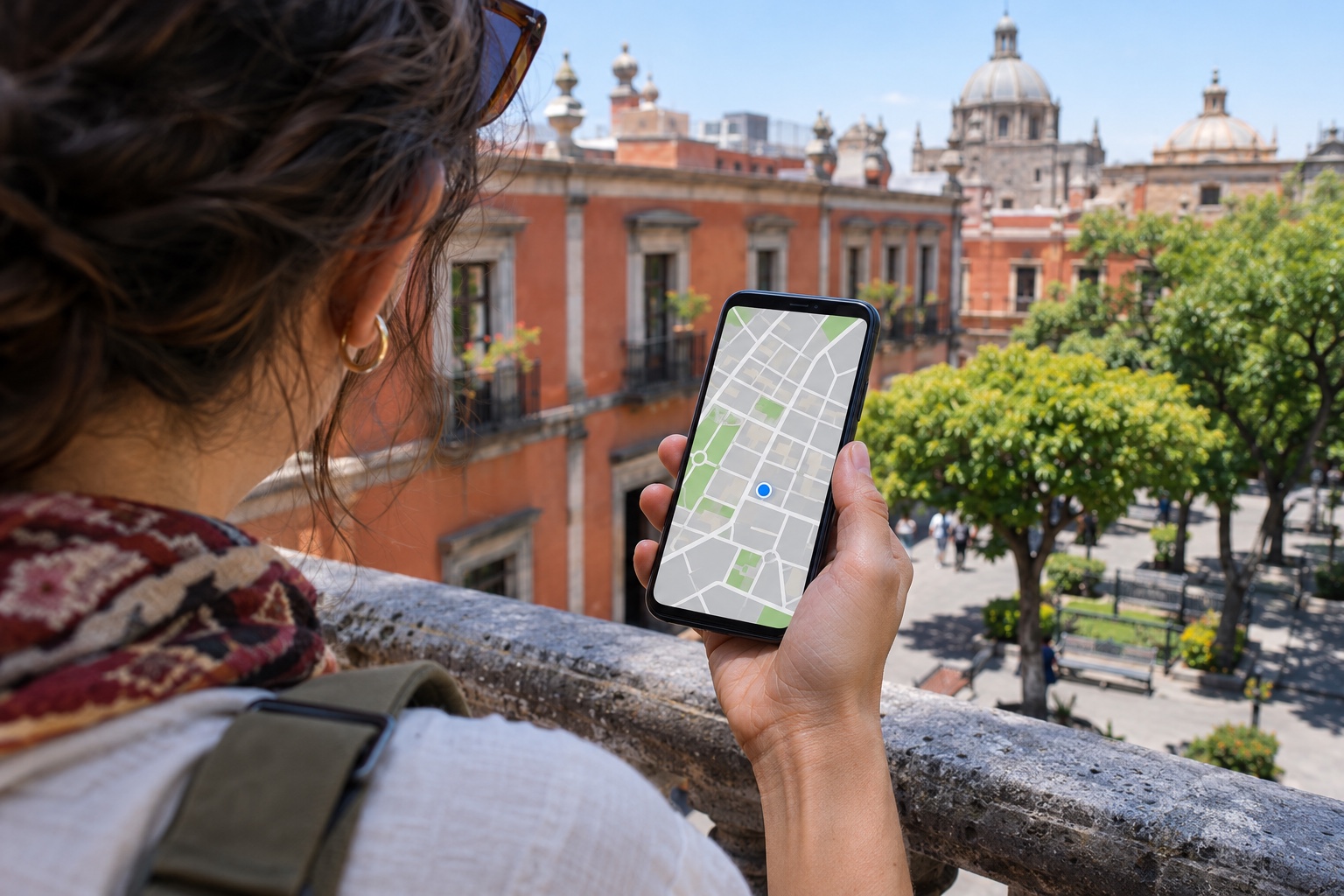
The blue dot usually comes from your phone’s location services. With permission, a map app can combine GPS, nearby Wi-Fi and other signals to find where you are. A website can ask for device location too, but it may fall back to IP geolocation or account settings when it has no permission. That is how a map can show your street while a retailer serves you a foreign storefront.
Check the dot against a nearby landmark. If the dot is accurate and only local search results look odd, add the city or neighborhood to the search. For a site that needs device location, review its location permissions and allow access only if you trust it and the feature needs it. A site that enforces its region using the public IP can still show the same result after you grant location access.
If the dot itself is off, check that location access is enabled for the map app and try somewhere with a clearer view of the sky. Inside a building, the dot can be less precise regardless of which SIM carries your data.
How can I test whether mobile data is changing the result?
Use the same phone, browser and page on both connections. Start with a page you can open without signing in, like the affected storefront’s home page. Testing a public page avoids mixing your connection test with an account’s region settings or triggering repeated login checks.
- Start on the travel eSIM. Turn off Wi-Fi and confirm that the travel line is selected for mobile data. If your phone can switch data lines automatically, make sure it stays on the travel line during the test. The dual-SIM data line guide explains how to tell which line is carrying data.
- Write down what you see. Reload the affected page. Note the region, currency or exact error, along with the time. If you use an IP lookup, record the country it reports. Leave any required work VPN or managed security setting in place and note that it may affect the result.
- Repeat on trusted Wi-Fi. Connect to Wi-Fi, turn cellular data off briefly if you need to isolate the test, and reload the same page. Leave browser language, account state, and location permissions as they were. Switch your travel data back on when you’re done.
- Compare the results. If the storefront changes or the error disappears on Wi-Fi, the connection is a likely factor. If the result stays the same, try the site’s region menu or open a fresh private tab on the same network to see whether a saved browser preference was involved. Wi-Fi can also use an IP associated with another region, so a single test is a clue.
If nothing loads over cellular, start with the LemonSIM FAQ’s connection checks. If several ordinary pages load and one site gives a region error, keep the working eSIM installed while you narrow down the cause.

What should I do when a site uses the wrong region?
For a language, currency or storefront mismatch, look for a country selector in the header, footer or account preferences. If you’re shopping, confirm the delivery country and total at checkout. The currency on the first page may be a display preference, while the delivery address governs which items can be shipped. For local results, include the city in your search or use a map app with location access.
For a sign-in warning or access block, record the exact message. Check the service’s travel or region rules from a known address or the official app. A security prompt may require you to confirm the login. A regional restriction may apply even when you have a good connection. If a trusted Wi-Fi connection works and the service permits it, use that connection for the task. For a work tool, ask your IT team which connections and access methods it supports.
If you need to contact LemonSIM, share the plan name, phone model, country you’re in, time of the test, the site or app affected, and what changed on Wi-Fi. Use the LemonSIM support page to find the official channel. A screenshot of the error can help. Crop out account details, payment information and your eSIM QR code.
What should I check before buying a plan for a region-sensitive service?
Start with the task you need to finish abroad. Directions, messaging and ordinary browsing generally give you more flexibility. If you must use a particular work tool, ticketing site or account portal, check whether it accepts access from abroad and which region signals it uses. Some services care about the account’s registered country or a device permission as well as the network.
Ask the eSIM provider about the expected public IP country for the exact plan at your destination and whether that country can vary. A plan’s coverage name and a higher data allowance tell you little about that routing. A different SIM may help only if its connection meets the service’s requirements. If the provider can’t confirm the IP country, check with the service about an approved way to connect before you travel.
For the rest of your trip, use your route and expected data use to compare LemonSIM eSIM plans. For the one service you can’t do without, test the access method early enough to arrange a backup.